Continue every session
Your phone and computer share one timeline, so you never have to explain the context again.
 Chat2Agents
Claude Code · Codex · Cursor Agent and 12 AI CLIs in total
When an agent needs your approval or an answer, you don’t have to walk back to your desk. Direct LAN first, end-to-end encrypted relay when you’re away — a secure link to your Mac, Windows, and Linux machines.
Illustration, not an actual screenshot
Your phone and computer share one timeline, so you never have to explain the context again.
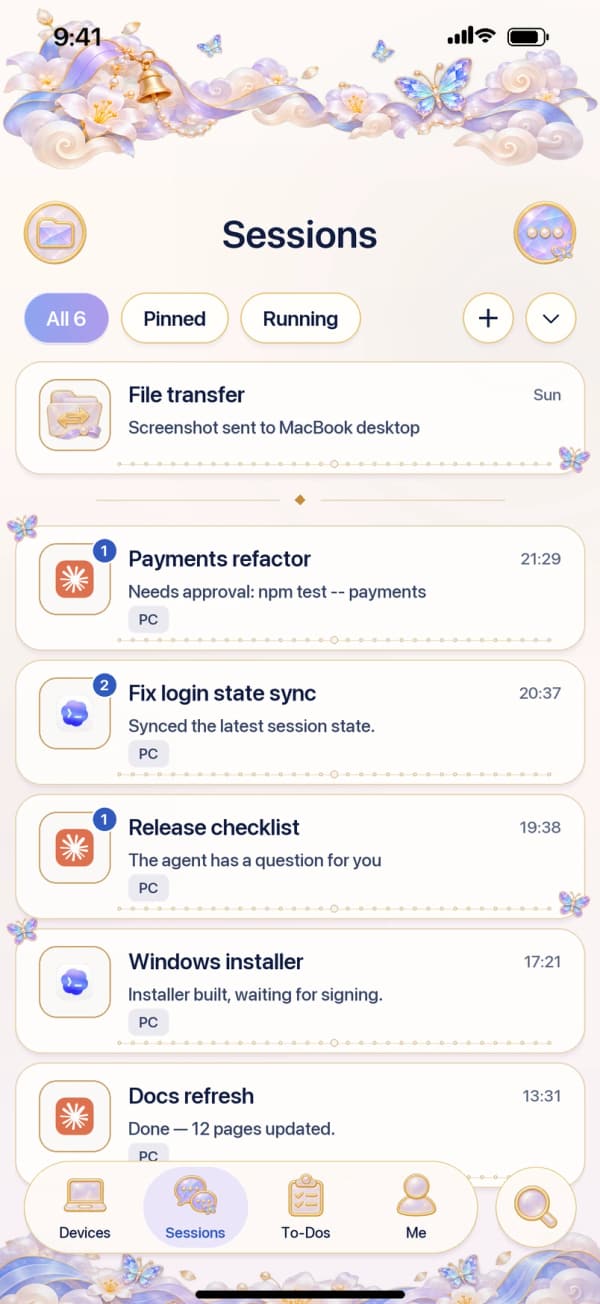
See agents and live status across Mac, Windows, and Linux in one place.
A zero-knowledge relay keeps content readable only on your own devices.
The desktop agent discovers installed CLIs automatically. Install and sign in to the tools you want to use first; model accounts, subscriptions, and API usage are your own.
Capabilities such as switching models or steering mid-task vary by tool and follow the current versions of the app and the desktop agent.
From alerts and approvals to terminal and files, the everyday actions work right from your iPhone.
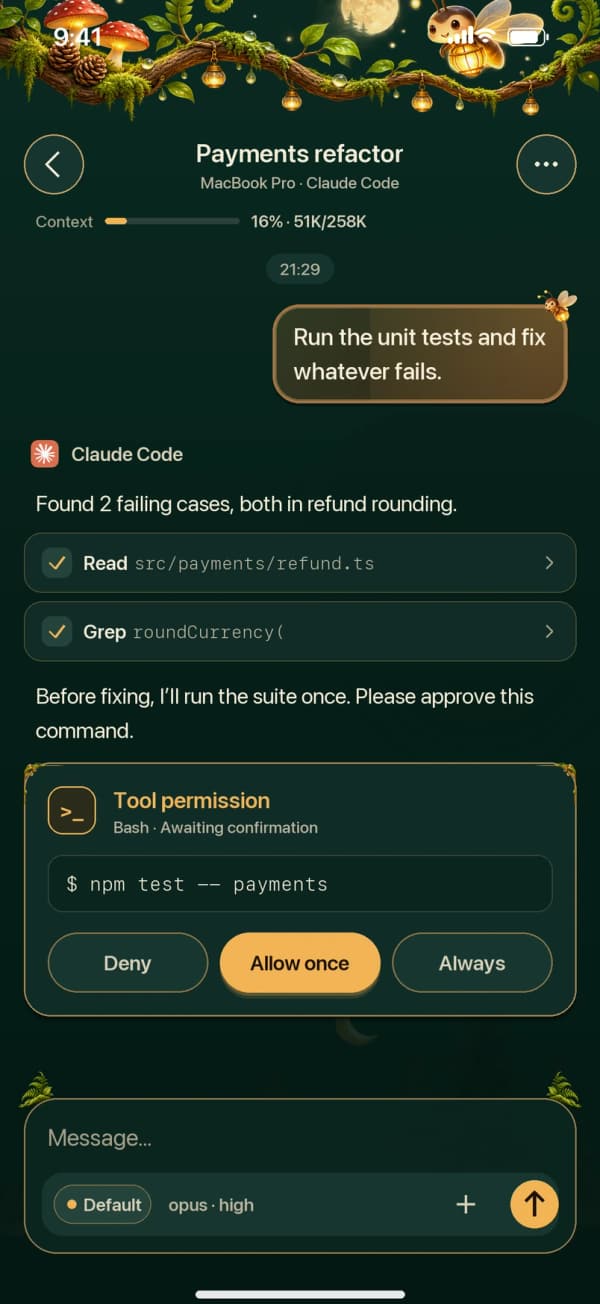
Get notified when a task finishes, needs approval, or the agent asks a question. Pending approvals can also appear as a Live Activity on your Lock Screen.
Permission requests and agent questions from every device collect in To-Dos, where you approve, deny, or answer them one by one.
Speak, review the text, and send. Use iOS speech recognition, local Whisper on your computer, or a third-party speech service you configure.
Open terminal sessions on your computer from your phone, switch between tabs, and see output as it streams in.
Send photos and documents straight to the agent, browse folders on your computer, and upload or fetch files.
Switch models and reasoning effort, watch context usage live, and stop a running task at any time.
Start in three steps
The desktop agent runs on your own computer. Chat2Agents just connects it securely to your iPhone.
Requires iOS 17 or later. iPhone only for now.
Coming soon to theApp StoreOnce the app is live, the download link and QR code will appear here.
Open a terminal, copy and run the command for your system, complete any system prompts, and wait for the pairing QR code.
Apple Silicon · macOS 15 or later · run in Terminal as the signed-in user, without sudo
curl -fsSL --proto '=https' --tlsv1.2 https://hs.930817.xyz:8443/c2a/install.sh | bash x86_64 / arm64 · systemd required · run as your own user; on servers allow it to keep running after logout (loginctl enable-linger)
curl -fsSL --proto '=https' --tlsv1.2 https://hs.930817.xyz:8443/c2a/install-linux.sh | bash x64 · PowerShell 5.1 or later · run in PowerShell and complete the firewall prompts
irm https://hs.930817.xyz:8443/c2a/install.ps1 | iex Updates keep your configuration, pairing, and data, using the update entry from the same download source. Use the uninstall entry to remove the agent.
curl -fsSL --proto '=https' --tlsv1.2 https://hs.930817.xyz:8443/c2a/update.sh | bashcurl -fsSL --proto '=https' --tlsv1.2 https://hs.930817.xyz:8443/c2a/update-linux.sh | bashirm https://hs.930817.xyz:8443/c2a/update.ps1 | iexInstall and sign in to the AI CLIs you plan to use (such as Claude Code or Codex) first. The scripts come from the official Chat2Agents download source; you can download and review them before running.
When installation finishes, the terminal shows a pairing QR code. Add a device in the app and scan it. For the first pairing, keep your phone and computer on the same network.
Connect directly on your LAN first, try secure peer-to-peer traversal when you leave, and switch to an end-to-end encrypted relay only when needed.
Chat2Agents evaluates network conditions in real time and automatically balances lower latency with reliable reachability, keeping the route as direct and secure as possible.
Connect directly on your LAN. When a relay is needed, requests are protected with AES-256-GCM end-to-end encryption. The relay forwards data without holding the key.
Good to know: the desktop agent runs with your computer account’s permissions — encryption protects the connection, it is not a sandbox. Push notification titles and summaries pass through the push gateway and Apple and are not end-to-end encrypted.
Cross-device flow
Let iPhone work naturally with Mac, Windows, and Linux: text reaches the target clipboard, files move between devices, and chat attachments arrive directly in the agent workflow.
Explore collaboration benefitsPlain text copied while the iPhone app is active can sync to paired computers. Bring new computer content back to iPhone when needed, with loop prevention between devices.
Browse computer folders, upload or retrieve files, and see acknowledged progress. Resume from the confirmed position after an interruption.
Photos, documents, and agent-generated results use the secure attachment path and appear as file cards instead of binary data in the message body.
Choose one or several paired computers for text and files. Temporarily unreachable devices keep their status and continue when the connection returns.
Basic pairing includes plain-text sync from iPhone to computers. File and clipboard handoff from computers to iPhone, plus advanced file tools, follow the current in-app membership entitlements.
Themes & decorations
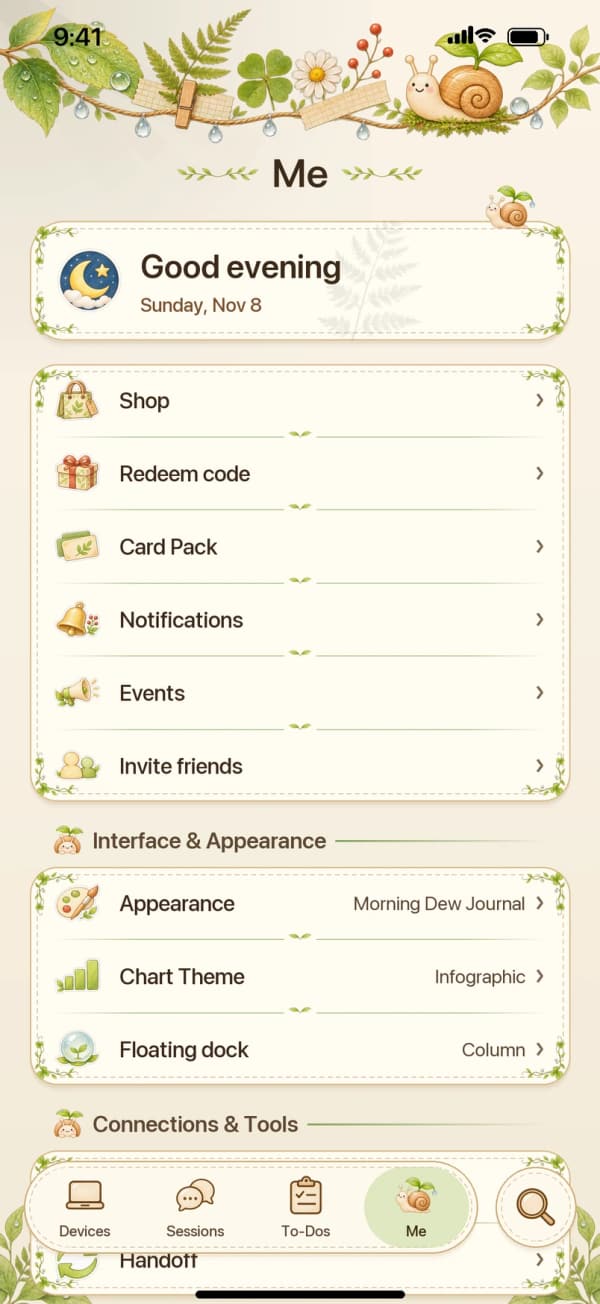
A theme changes the pull-to-refresh effect, chat bubbles, and the Me page background together — and pull effects, bubbles, dividers, and full-screen effects can also be mixed and matched.

Theme cards show cover illustrations; the phone shows the session list in the selected theme. Available themes and how to get them (membership, limited events, or the in-app store) follow what is currently listed in the app.
Membership
Start free with one computer and unlimited sessions. Membership progressively expands device and group capacity and unlocks member themes, device tools, and file and clipboard handoff.

Experience the essential flow of connecting a computer and continuing a session.

For staying productive across several tasks on one primary computer.

Move between multiple computers and keep projects and sessions under control.

The complete tier for frequent work, many devices, and a large number of concurrent sessions.
Use the button under a membership card, or a plan in the table header, to focus on its benefits.
| Benefit | ||||
|---|---|---|---|---|
| Connected devices | 1 | 1 | 3 | Unlimited |
| Custom groups | — | 3 | Unlimited | Unlimited |
| Member-exclusive themes | — | — | Included by tier | Included by tier |
| Current non-limited paid themes | — | — | — | ✓ |
| Device tools | — | Core | Advanced | Complete |
| File & clipboard handoff | — | — | ✓ | ✓ |
| Usage insights | — | — | ✓ | ✓ |
Member-exclusive themes start with Moonlight. Sunlight also includes every current non-limited paid theme in the app.
Glimmer, Starlight, Moonlight, and Sunlight currently include unlimited sessions; the differences are devices, groups, and advanced benefits.
Sunlight includes File Transfer, Design Preview, Browser, and Shell. Other tiers can still unlock these tools permanently in the app.
Website prices follow the App Store storefront associated with the selected site language: Simplified Chinese uses China mainland, English uses the United States, and Japanese uses Japan. Your actual subscription price, taxes, and trial eligibility are determined by the checkout sheet for your Apple Account region. Subscriptions renew automatically and can be canceled anytime in your Apple Account settings. Current member themes and available tools follow the in-app benefits page.
A:No. Chat2Agents has no user accounts, does not host your AI sessions, and does not copy your desktop history to a platform. Your iPhone talks to the desktop agent directly whenever possible; if a relay is required, it only forwards end-to-end encrypted traffic and cannot read messages, attachments, or commands. Push notifications are the exception: their titles and summaries pass through the push gateway and Apple.
A:Yes. Chat2Agents connects to the AI CLIs already installed and signed in on your computer (such as Claude Code or Codex); it does not provide models. Model accounts, subscriptions, and API usage are between you and those providers. Chat2Agents membership only affects device, group, theme, and tool benefits in the app.
A:The mobile app requires an iPhone with iOS 17 or later; iPad and Android are not supported yet. The desktop agent supports macOS 15 or later on Apple Silicon, Linux on x86_64 / arm64 with systemd, and x64 Windows with PowerShell 5.1 or later. One iPhone can manage multiple paired computers; install commands for each platform are under “Start in three steps” on this page.
A:Yes. The AI CLIs and the desktop agent run on your computer, so your iPhone cannot connect while it is off, asleep, or offline. After installation the agent runs as a background service for your user and starts when you log in, so you normally don’t need to launch it.
A:Yes. Chat2Agents prefers a direct LAN connection, tries secure peer-to-peer traversal across networks, and falls back to an end-to-end encrypted relay only when necessary. Route changes are automatic, so you do not need to edit addresses or pair the device again.
A:The desktop agent currently discovers Claude Code, Codex, Cursor Agent, OpenCode, Kimi Code, Qoder, TRAE CLI, WorkBuddy, OpenClaw, Hermes, ZCode, and DeepSeek Harness, and also provides a remote terminal. Capabilities such as switching models or steering mid-task vary by tool and follow the current versions of the app and the desktop agent.
A:Choose your system under “Start in three steps” on this page, run the install command in a terminal, complete the system prompts, and scan the QR code shown in the terminal. To update, run the update command from the same download source; your configuration, pairing, and data are kept.
A:Pairing credentials are stored on your devices rather than entrusted to the relay. Public connections use TLS with certificate pinning, and relayed request content remains end-to-end encrypted. If a device is lost or retired, remove it in device management.
A:All current tiers include unlimited sessions. Tiers mainly differ in connected-device limits, custom groups, member themes, device tools, and file and clipboard handoff; Sunlight also includes current non-limited paid themes. Subscriptions are purchased through the App Store and renew automatically; final price, tax, trial eligibility, and renewal terms are shown by the App Store for your region.
A:Confirm that the desktop agent is running, that the iPhone and computer clocks are correct, and that local firewall or proxy rules allow the connection. If LAN access fails, the app keeps trying traversal and relay routes. Check the current route and status in device details before pairing again. See the Support page for more steps.
Connect your devices and keep your AI agents truly within reach.